Submission Details
Note Please take special note that you are only allowed to use special forms specifically introduced in the lecture videos / assignments.. The autograder will reject any submissions that use special forms we haven’t introduced.
Getting Started
In this assignment you’ll play with simple functions for making images that we’ll use later on in the course. The only problem that involves lambda expressions is the very last activity. NO OTHER ACTIVITIES require the use of lambdas.
Note: We’ve tried to make this assignment accessible to those who have trouble seeing colors, but please let us know if we can provide additional help.
In order to start this assignment, please download the following ZIP file, extract its contents, and open up exercise_1.rkt.
What's a ZIP file?
This download is a ZIP file which must be extracted before the files can be edited. On a Mac, you can double click on the ZIP folder and it will extract the files for you. On a Windows computer, you can use these instructions from Microsoft to extract the template files.Where should I put this stuff?
We highly recommend moving the extracted folder to a CS 111 work folder somewhere on your machine (so you have all your 111 stuff in the same place) and renaming it to make sure you submit the file you mean to later when you go to submit.Activity 1. Red Square
First, let’s make a 100x100 red square like the below:

Now you should give this square a name. In the Definitions Window type:
(define a-red-square your-code-for-the-square)
and hit run.
You can now refer to the square by typing a-red-square into the interaction window or any code you write.
VERY Important Note: The names you give your images (i.e. the names after the word “define”) must be exactly as described otherwise the autograder will reject your submission!
Don't forget about (require 2htdp/image)!
Remember the image functions are not built into ISL+ by default. In order to use them we have to ask DrRacket to
require them at the top of our program. Take a look at the Graphics Language lecture for more details. Activity 2. Blue Circle
Now let’s make a blue circle of radius 50.

Define it as the name: a-blue-circle.
Activity 3. NU Stop Sign
There’s a ton of built-in colors in the ISL, stored in special data object called the color-database<%>. We won’t worry about the details of this more complex piece of data right now, but suffice it to say that when Racket sees you’ve given it a String as a color input, it looks that string up in this database to see if it has a matching color and replaces that string with the actual “recipe” for that color.
How do we make our own colors?
Colors are represented on computers as mixtures of Red, Green, and Blue values – you can imagine it like mixing together red, green, and blue paints to get different colors. Each pixel (i.e. tiny square) on your computer screen gets assigned a different "intensity" of red, green, and blue which mix together to form its color. This means that we don't actually have to use a color's name as inputs for these shape functions; instead we can specify the exact mixing of red, green, and blue light that we'd like (these intensities are lowest at a numeric value of 0 and highest at a numeric value of 255).
For instance, surprisingly
"Northwestern Purple" is not a recognized color in ISL. "Northwestern Purple" is officially hexadecimal color #4E2A84 which has a red value of 78, a green value of 42, and a blue value of 132. To make a color in the ISL, we can use the make-color function which has the following type signature (i.e. recipe): ; make-color: number number number -> Color ; or slightly more specifically... ; make-color: (integer-in 0 255) (integer-in 0 255) (integer-in 0 255) -> Color
The first input must be the red intensity, the second must be the green intensity, and the third must be the blue intensity.
Use the make-color function to create our new color and then use that as an input to some function that allows us to make a regular octagon that is solid and has a side length of 100.

Define it as the name: a-northwestern-stop-sign.
Activity 4. Outline Mode
Repeat Activities 1, 2, and 3 but use outline mode:
outlined-square | outlined-circle | outlined-stop-sign |
|---|---|---|
 |  |  |
Define them as the names outlined-square, outlined-circle, and outlined-stop-sign respectively.
Activity 5. Compound Images
Now let’s make compound images from simpler images. Use overlay, above, and beside to make the following compound images, defined as follows.
row-of-hexagons |  |
|---|---|
column-of-hexagons | 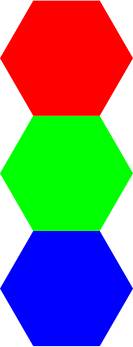 |
nested-hexagons | 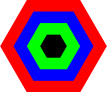 |
Make sure to draw out or imagine the dataflow diagrams for each of these. You don’t need to turn them in–just draw them on some scratch paper or a whiteboard to make sure you understand how the data moves through the chain of calls. All of the hexagons in the first two should have side-length 50. The hexagons in the third image will have side-lengths of 10, 20, 30, and 40.
Activity 6. Debugging Exercise
In the starter file under activity 6, you’ll see a “commented” line of code that looks like the below but is preceded by a semi-colon.
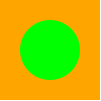
(overlay (circle 30 "solid" "green" square 100 "solid" "orange")))
What does it mean for code to be commented?
While the code we write is mainly intended for the computer, we're often also writing code with a human audience as well. Whether our future selves or a colleague. Sometimes, the names we use in our code doesn't communicate everything we need to know about how a program works. Additionally, sometimes we solve problems that we think we might forget later and want to leave a note. Obviously the computer doesn't care about this note, so nearly every programming language has a concept of commenting: marking the text we see in our editor as specifically for human consumption rather than part of the program.
In ISL+, we do this by preceding any notes with a
; (semi-colon). DrRacket, when it runs your program, will stop reading any lines in your program that begin with a semi-colon. This function call is supposed to generate the following shape:
First uncomment the line (remove the preceding semi-colon) and run your program again. You should see an exception in DrRacket and it should also highlight the responsible function call. You have three tasks here:
- Restyle the code so it fits our style guidelines (see Lecture 2 - the function call should be 7 lines long if correctly styled)
- Think about how this function call should work by drawing a Data Flow Diagram for it on a piece of paper. See if the shape helps you notice the issue.
- Fix the issue with the function so it produces above shape and restyle the code (the correctly styled fix program will be 6 lines).
- Finally, define this shape as the variable
debugging-exercise
Activity 7. Rotating
Read the documentation for the rotate function and try making an image that looks like this:

Define it as barbie-bowtie. You can use the use official Barbie pink via the color function with a RGB values of 218, 24, and 132 respectively. The triangle’s should both be equilateral with side-length 50 (hint: the rotate angle with 30 and -30)!
Activity 8. Flag of Chicago
Now, make the flag of Chicago:

You might need some more functions than the ones we have discussed so far. You may find radial-star and overlay/xy to be helpful. Remember all the functions in the ISL are explained in the documentation (linked earlier) and your image doesn’t need to be exact! Define it as flag-of-chicago. And again, make sure that you can sketch out the dataflow diagram for it.
How close does it need to be?
This is is one of those times where it benefits students to NOT ask for specifics. The more specific I get, the more expectations I have of exact precision. For this design, my standard will be: "If you showed this to a person, and said 'this is the flag of chicago,' they either a) be like 'oh sick,' b) 'duh,', or c) squint their eyes, turn their head, and go 'okay....'.
Activity 9. Your Own Design
Make a custom image of your own design. It must have at least 4 shapes and 2 different colors. You could make a smiley face, a Frankenstein, a bowling ball, a logo, a checkerboard, a house – whatever you’d like. Define it as my-custom-design. We might feature some of the best creations on Piazza!
Activity 10. Writing a Simple Function
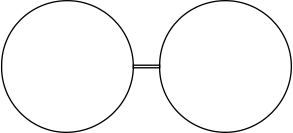
Now write a simple function, glasses, that makes a picture of a pair of glasses. It takes two inputs, the first is the lens design (an image) and the second is the design for the bridge that joins the two lenses (also an image). It should output an image with two copies of the lens, joined by the bridge. So if you say:
(glasses (circle 50 "outline" "black")
         (rectangle 20 2 "outline" "black"))
You should get something like this:
Remember, a lambda expression is one that allows you to specify something is a function that needs to be evaluated with inputs rather than just a regular old piece of data. So for example, we can make a new function by saying:
(lambda (lens bridge)
          output-code)
Where output-code is whatever code you want to use to make the image of the glasses. The word lambda tells the system we’re making a new function, and the (lens bridge) part tells the system that the output code can refer to the inputs passed to the function by the names lens and bridge, respectively. When the function is called, the system will substitute the first argument passed to the function, whatever it may be, for the name lens wherever it appears in the output-code and it will substitute the second argument in for the name bridge.
That’s how you make a new function, but making the function doesn’t give it a name. You do that by wrapping it in a define expression. So, your program should look something like this:
(define glasses
   (lambda (lens bridge)
      output-code))
Your job here is to decide what output-code should be. It’s going to want to make two copies of the lens and place them around a copy of the bridge. Remember that you can insert whatever the user provided for the lensand bridge into your code just by saying lens and bridge respectively.
Feel free to change the names lens and bridge to something else if you prefer.
Double Check your Work
Make sure you’ve uncommented all of those built-in check-expect calls as they will double check you’ve defined all of your variables correctly. A few minutes after you submit, you’ll receive results of the autograder running on your file. You can submit 1 additional time to fix issues. You are welcome to ask questions about your exercise on Piazza, but if you post code make sure it is in a private post.